


Video Analytics Dashboard: Are Learners Engaged or Just Pressing Play?
Video can be one of the most engaging formats in a learning experience, but how do you know if the video is effective or whether learners are ignoring specific parts? You might want to know if learners watch the whole video, where they pause, which segments they replay, or what they skip. Did they return to a section that covers a specific learning or performance objective?
The Video Analytics dashboard in Veracity Learning turns xAPI video data into answers you can use. It combines high-level viewing metrics with second-by-second audience retention and session-level interaction details, giving learning teams a much clearer view of how people actually consume learning and training videos.
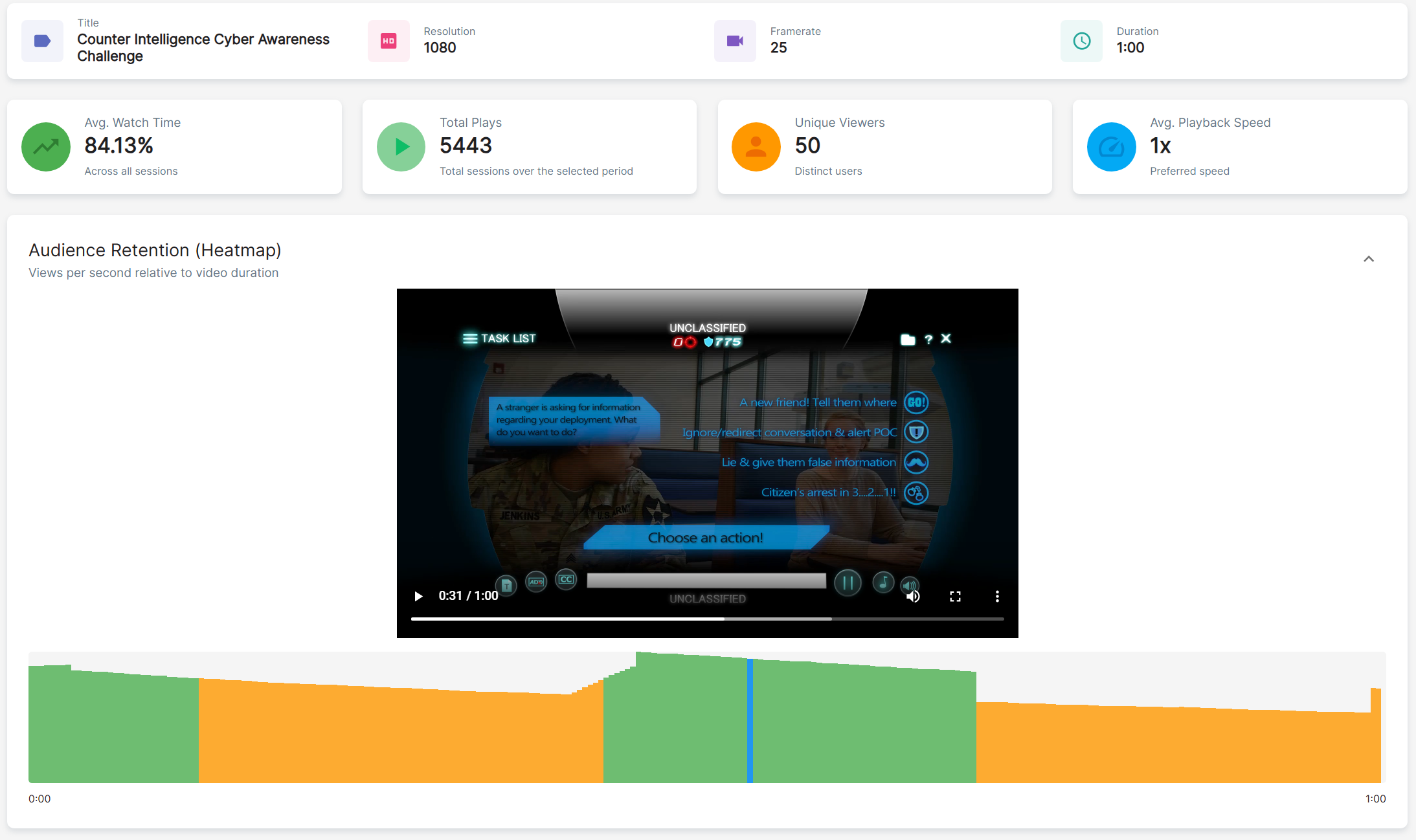 Video Analytics Dashboard - Audience Retention Heatmap
From Plays to Meaningful Viewing Patterns
At the top of the dashboard, summary cards show average watch time, total plays, unique viewers, and average playback speed. The Audience Retention Heatmap and Session Log add detail to these summary metrics, showing which sections learners watch, replay, or skip.
The Audience Retention Heatmap displays the number of views over the video timeline. Peaks can reveal replayed or frequently accessed segments of video, while valleys may show skipping, abandonment, or fewer learners reaching a segment.
When the xAPI activity object ID is a direct, browser-accessible, MP4 URL, Veracity Learning can display the video directly above the heatmap. As you scrub through the video, the dashboard follows the corresponding point in the retention data in real time. This makes it much easier to connect a peak or valley to the exact moment in the video learners were seeing.
Daily Activity and Screen Sizes
Below the heatmap, Daily Plays plots the number of viewing sessions over time. The range selector beneath the chart helps you focus on a smaller window without changing the entire dashboard.
The Screen Sizes panel groups overlapping viewport sizes and counts. This information can be used to help influence design decisions for larger displays compared to tablets and smartphone form factors.
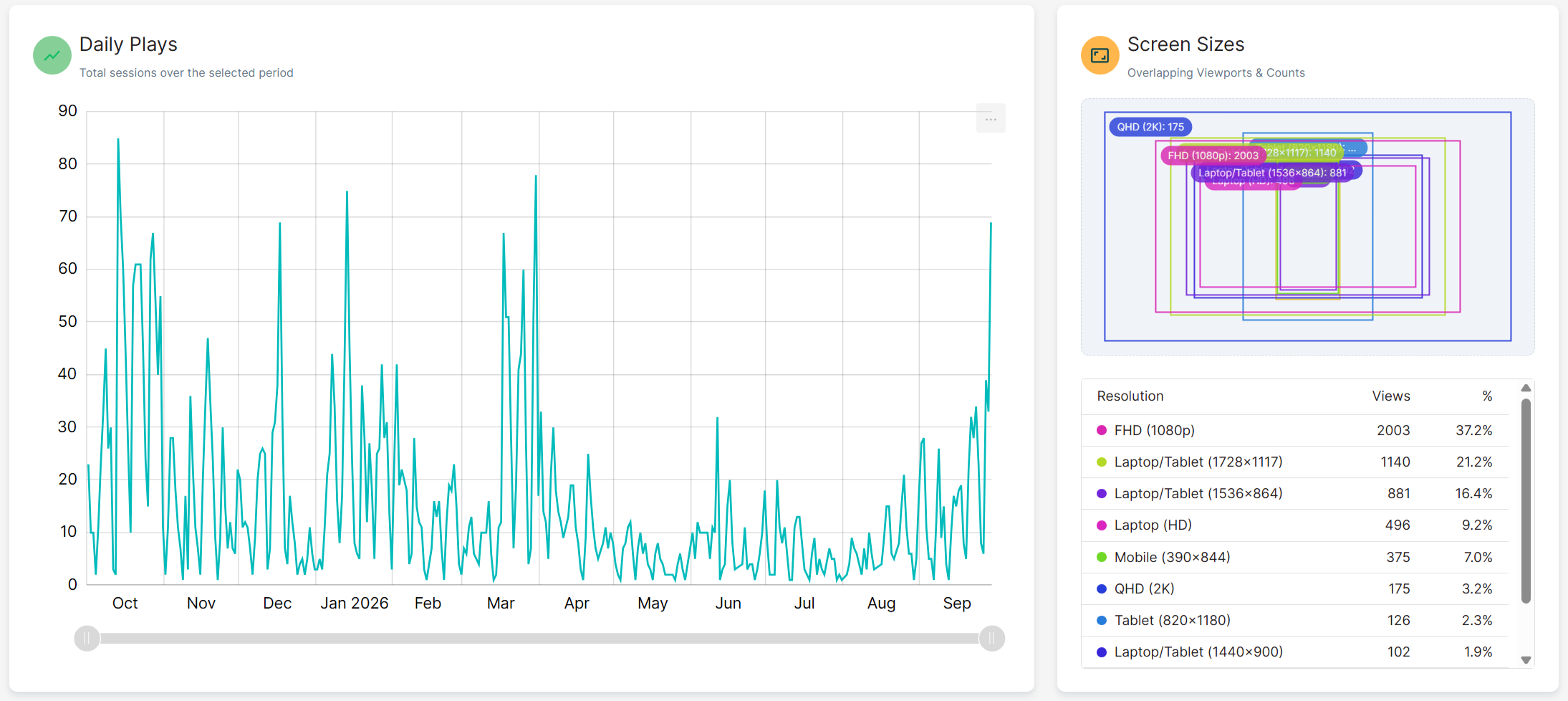 Video Analytics Dashboard - Daily Plays and Screen Sizes
Look Beyond Completion with Session Level Insight
The Session Log connects the aggregate charts to individual viewing sessions. Each row shows the learner, date, device or viewport, engagement label, and completion percentage. Expanding a session reveals duration, maximum progress, interaction counts, and a viewed-segments timeline showing plays, pauses, seeks, completions, and terminations.
The dashboard labels sessions as Engaged, Distracted, Skimmed, or a combination of available labels. However, these should be evaluated by a user and not used to definitely measure behavior or assign a grade.
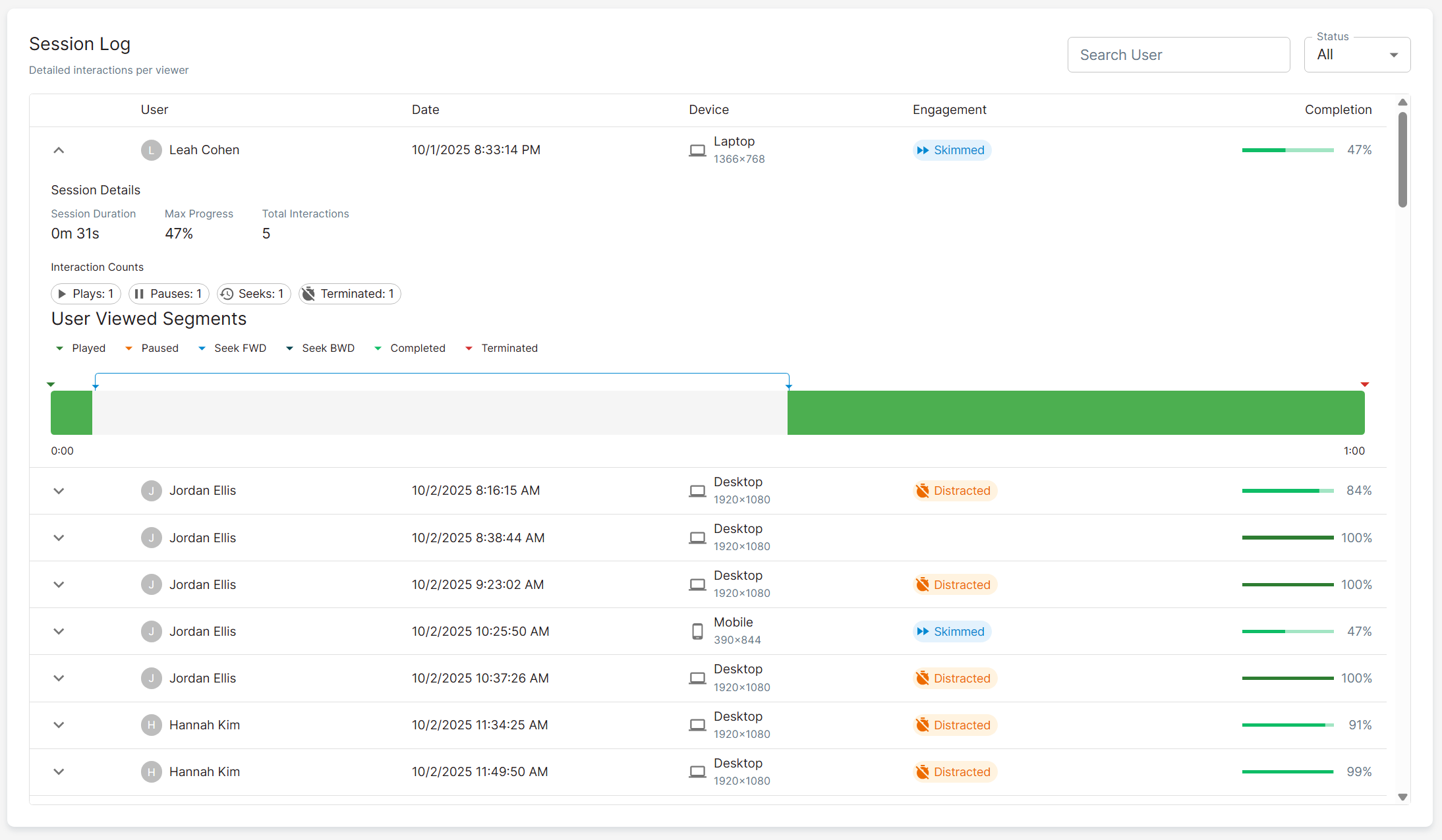 The Session Log shows engagement labels and completion data for individual viewing sessions.
Turn the Findings into Better Video Learning
These video analytics can help a learning team decide where to focus its time and effort toward improving the video content:
- Review heatmap peaks to see whether learners are replaying a useful explanation or struggling with an unclear one.
- Investigate early declines to determine whether the introduction is too long or the value is not clear.
- Compare screen-size patterns with the visual design so text and demonstrations work on the devices learners use.
- Look for recurring distracted or skimmed patterns across multiple sessions.
- Compare viewing behavior with assessment and performance data to understand whether the video is supporting the intended outcome.
Ready to Explore the Video Analytics Dashboard?
The dashboard requires an LRS dataset containing statements that follow the xAPI Video Profile. Consistent activity IDs, session identifiers, playback events, played segments, progress, playback speed, and screen-size extensions are necessary to help produce useful results.
For the complete setup procedure, dashboard controls, field explanations, screenshots, and guidance for interpreting engagement labels, see the Video Analytics Dashboard article in the Veracity Learning User Manual.
Want to experiment before instrumenting your own player? Download the sample xAPI Video Profile dataset and import it into a test LRS. Select All Time when opening the dashboard so the sample statements are included.
Video becomes far more useful when you can see how it is actually used. With consistent xAPI Video Profile statements and Veracity Learning, teams can turn viewing behavior into evidence-informed decisions about learning content and performance support.
If you would like help using the video dashboard widget or have questions, contact Veracity.